Getting started
Installing
Get the app from the download section of its project page, or on Windows from the Microsoft Store.
Mac
Open the downloaded .dmg and drag Eisenhower AI into Applications, then open it from there. The app is signed and notarised by Apple, so it opens like any other.
Needs macOS 13 Ventura or later, on Apple silicon or Intel.
Windows
The Microsoft Store version installs like any Store app. The direct installer installs for your account only and needs no administrator rights. It is not signed yet, so Windows may show “Windows protected your PC”: choose More info, then Run anyway.
Needs Windows 10 or 11, 64-bit.
The welcome tour
The first time the app opens, a three-step tour sets it up:
- Every task goes in one of four boxes. The matrix as a 2x2, with its two axes and an example task in each box. Below it, where your tasks will be saved: a folder called Eisenhower AI in your Documents folder. Choose Change folder... to keep them somewhere else.
- Paste anything. AI sorts it. A messy sentence and the four tasks it becomes, sorted in advance so nothing is sent anywhere. Add 4 example tasks puts them in your matrix to try things out, or Continue without adding.
- Want AI to sort for you? Choose Eisenhower Pro, your own API key, Local AI, or Not now. You can change this any time; see Setting up AI.
Run the tour again from Settings › About › Welcome tour.
On a Mac
The four quadrants
The Eisenhower Matrix sorts every task by two questions: is it important? and is it urgent? Important means it moves your work, health, money, family or goals forward. Urgent means it has to happen soon. The answers give four boxes, each with an action:
| Action | Means | Typical tasks | |
|---|---|---|---|
| Q1 | Do First | Urgent & Important | Deadlines today or tomorrow, a crisis, someone waiting on you. Do these now. |
| Q2 | Schedule | Not Urgent & Important | Health, learning, planning, relationships. Give them a time before they turn urgent. |
| Q3 | Delegate | Urgent & Not Important | Interruptions and other people's small requests. Hand them off, or do them quickly. |
| Q4 | Eliminate | Not Urgent & Not Important | Busywork and “maybe someday”. Drop them, or keep them out of the way. |
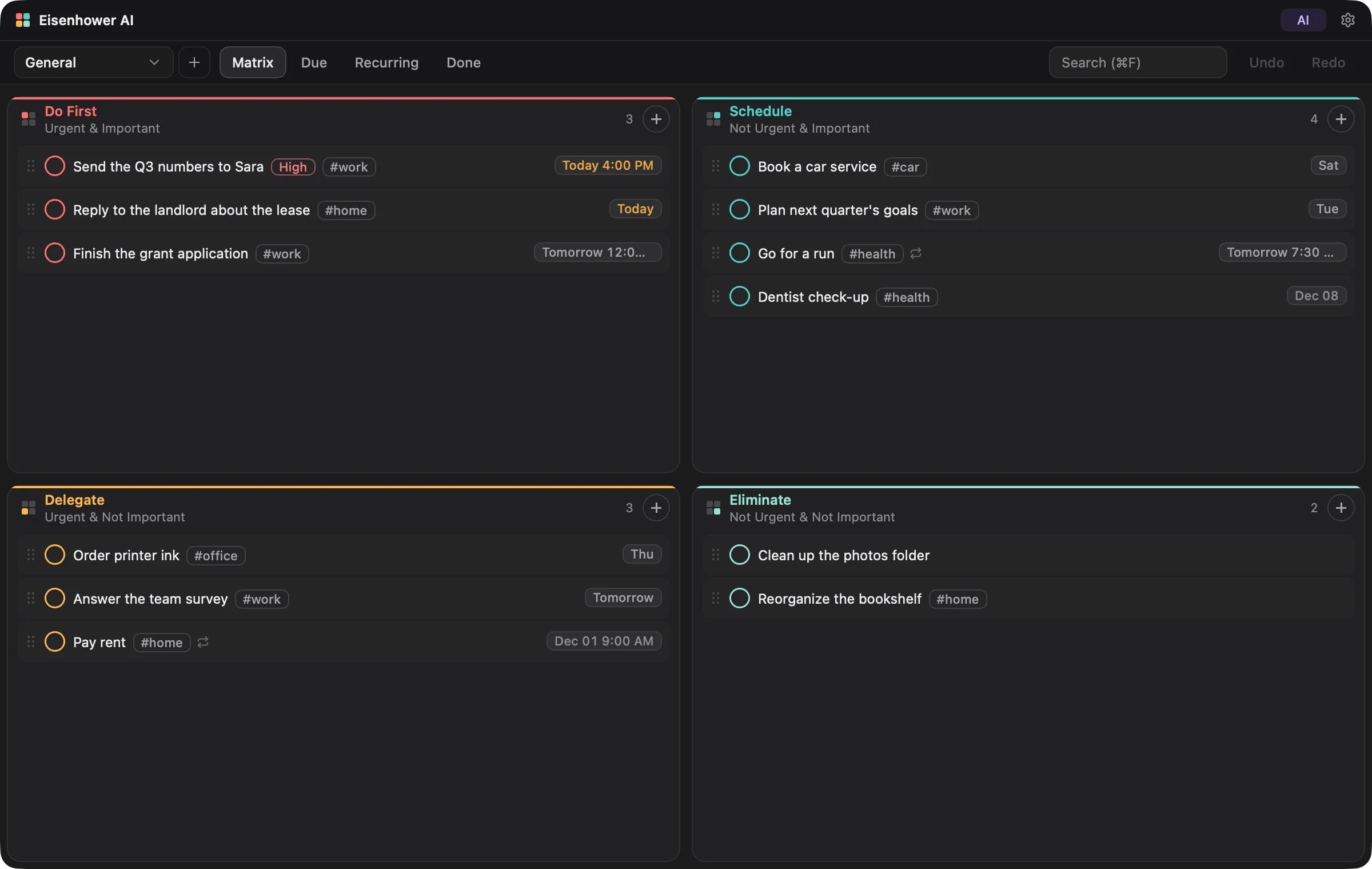
The point is the second box. Most days are spent in Do First and Delegate, reacting. Time in Schedule, on important things before they turn urgent, is what makes the urgent box smaller. The Week in Review card tells you when most of what you finished was urgent.
Adding tasks
- The + on a quadrant, or double-click empty space in it. Type the task and press Enter; Esc cancels.
- Ctrl+N or ⌘N starts a new task in Do First.
- Quick Add, from any app, with a keyboard shortcut. See Quick Add.
- The AI Classifier: paste a whole list or a paragraph, or speak it, and have it split and sorted. See Setting up AI.
New tasks go to the bottom of their quadrant, in the matrix you have open. Add a date, reminder, notes, tags or priority afterwards, as below.
Working with a task
Right-click a task to open its menu. From the keyboard, focus a task and press Shift+F10, or the Menu key on Windows.
| Menu item | What it does |
|---|---|
| Edit | Rename the task. Also F2. |
| Notes | Free-form notes, saved as you type. |
| Date & reminder | Due date, due time, reminder and repeat. Also click the date on the task. |
| Tags & priority | Tags such as work or home, and Low, Normal or High priority. |
| Open task file | Open the task's Markdown file in your text editor. |
| Show in folder | Show the file in Finder or File Explorer. |
| Move to | Another quadrant, or another matrix. |
To delete a task, focus it and press Delete. If Ask before deleting tasks is on, the app asks first.
Moving tasks
Drag a task within a quadrant to reorder it, or onto another quadrant to move it. From the keyboard, Alt (⌥ on a Mac) with the arrow keys does the same: up and down within the quadrant, left and right to the quadrant beside it, and with Shift, up and down between the top and bottom rows.
Tags and priority
Separate tags with commas or spaces, up to 12 per task. They show on the task as #work; click one to show every task with that tag. High priority is marked on the task; Low and Normal are not.
Finishing and undoing
Click the circle beside a task to mark it done. It moves to the Done view, which lists what you finished by day, with this week's count. To undo it, choose Mark as not done in Done.
Undo and Redo in the view bar, or Ctrl+Z / ⌘Z, go back and forward through up to 50 changes: adding, editing, completing, moving, deleting, a whole AI batch, even restoring from the trash. The history lasts until you quit.
Deleted tasks go to a trash folder inside your task folder, never straight to oblivion. Open Settings › Task folder, then Open beside Trash, to list them with Restore. Ask before deleting tasks is in the same place.
Week in Review
The first time you open the app in a new week, a card shows how many tasks you finished this week and last, split by quadrant, with a tip when most of it was urgent. Dismiss it until next week, or open it again from the Done view.
Due dates and reminders
Choose Date & reminder from a task's menu, or click its date:
- Due date and Due time, each optional. The task shows Today, Tomorrow, a weekday or a date. Dates are coloured only when the task is overdue or due today.
- Remind me at the due time, once a task has both a date and a time, or Reminder for any other moment.
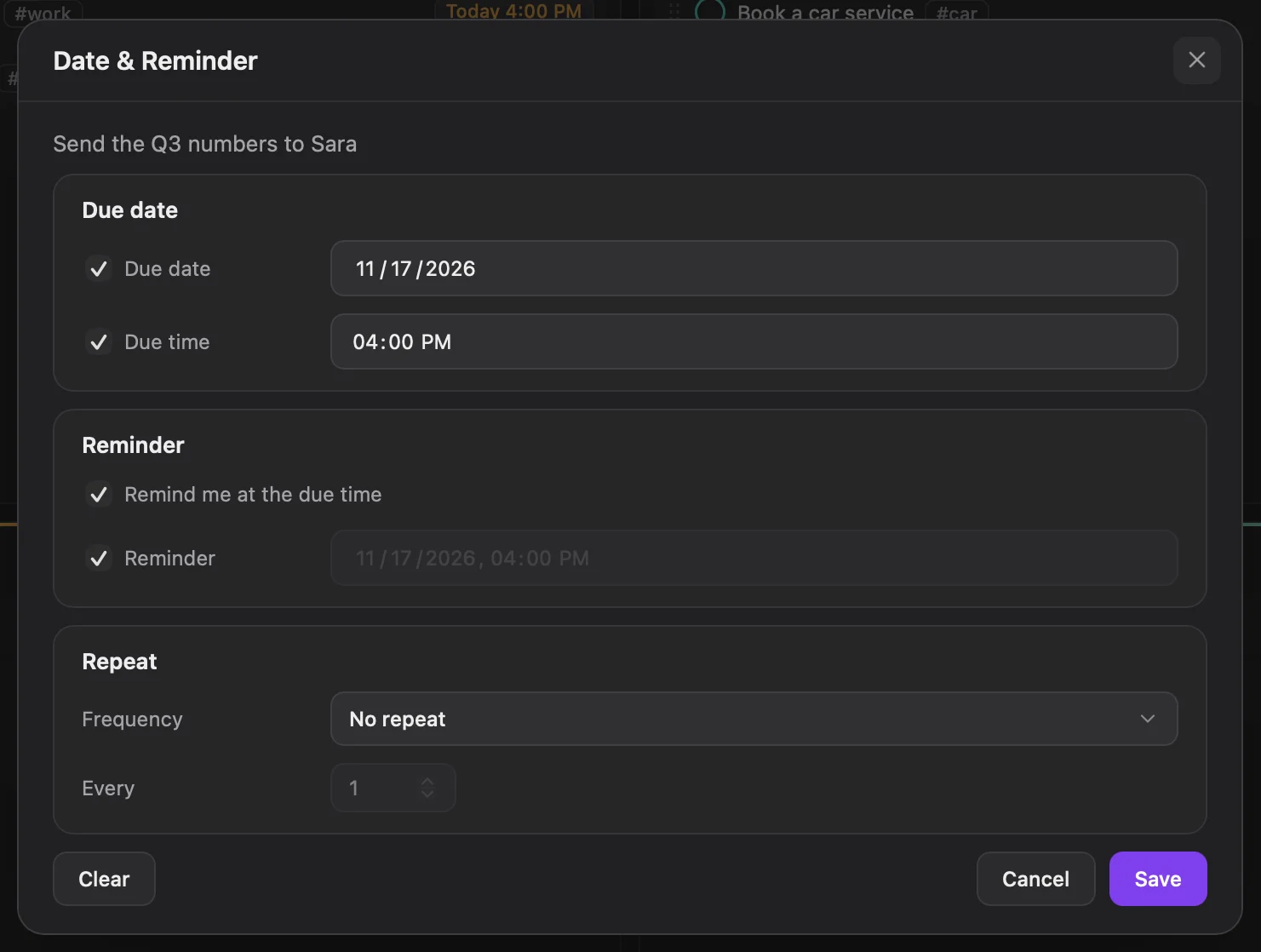
How reminders arrive
At the reminder time you get a system notification titled Eisenhower AI Reminder, and a reminder inside the app with Open, three snoozes (10 min, 1 hour, Tomorrow 9:00) and Dismiss. It stays until you act on it. If several are due at once, the app shows three and sums up the rest in one notification.
The app has to be running
Mac
The first reminder asks for permission to show notifications. If you missed it, turn notifications on for Eisenhower AI in System Settings › Notifications.
Windows
Reminders appear as Windows notifications. Do Not Disturb can hold them back; the reminder inside the app still shows.
Repeating tasks
In Date & reminder, set Repeat to Daily, Weekly or Monthly, and Every to how many days, weeks or months apart.
Completing a repeating task does not file it under Done. It stays where it is and moves to its next date, with its reminder, and the app says when it comes back. If you fell behind, it jumps to the next date after today rather than leaving a pile of overdue copies. The Recurring view lists every repeating task.
More than one matrix
Keep separate matrices for work, school, a side project or home. Each has the same four quadrants. Switch with the menu at the left of the view bar, and add one with the + beside it, starting from the School, Work or Custom template.
- Move a task to another matrix from its menu: Move to, then the matrix's name.
- Rename or delete matrices in Settings › Matrices. Deleting one moves its tasks to a matrix you choose first, so no task is lost. General is always there.
- Matrix names are saved in your task folder, so they come with it to another computer.
- Reminders cover every matrix; the views show the one you have open.
Views and search
| View | Shows |
|---|---|
| Matrix | The four quadrants. |
| Due | Overdue tasks and those due in the next seven days, grouped by day. |
| Recurring | Every repeating task. |
| Done | Everything you finished, by day, with this week's count and Week in Review. |
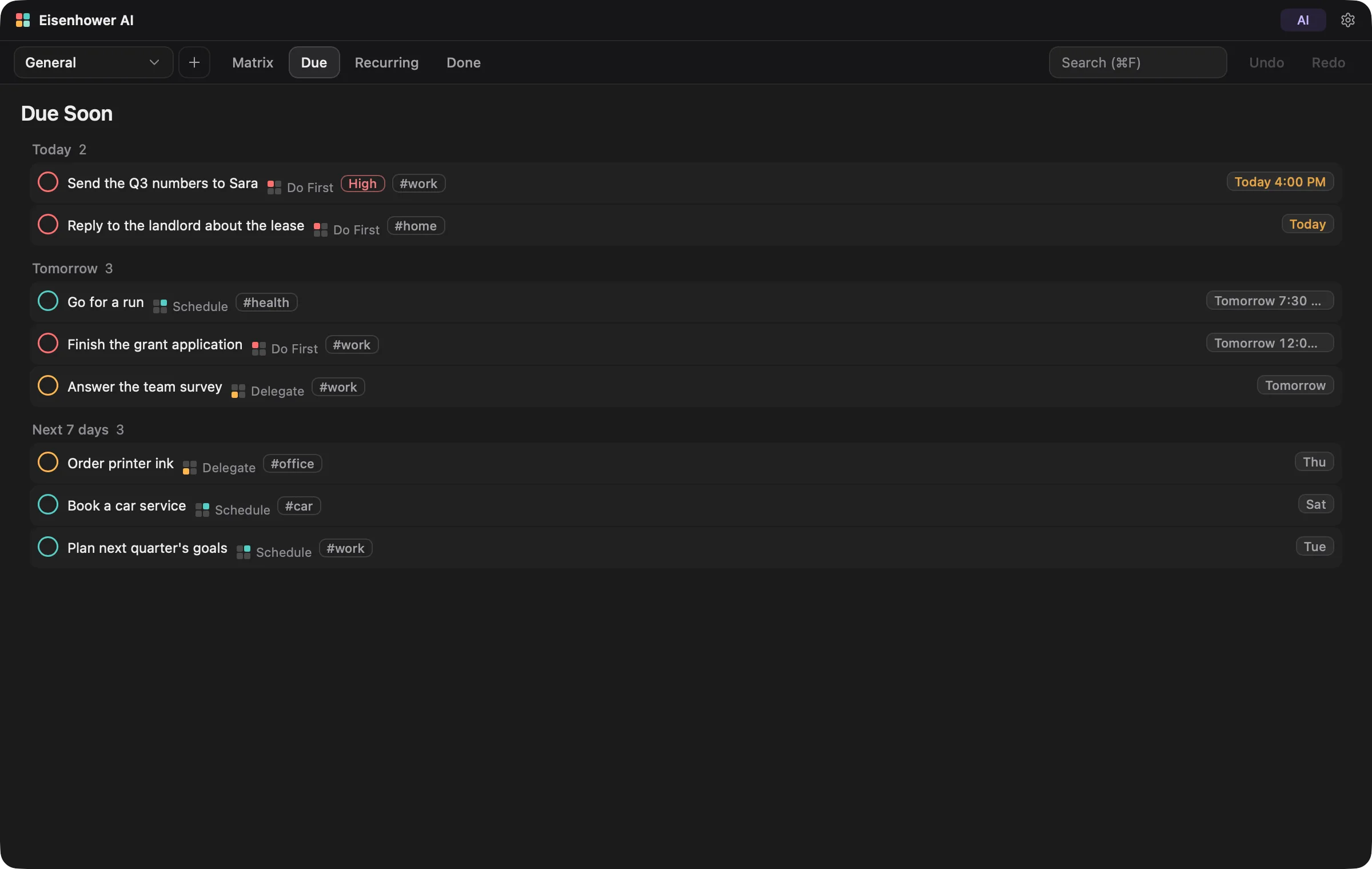
The lists name each task's quadrant in words, so you never have to rely on colour.
Search
The search box sits next to Undo in the view bar. Ctrl+F or ⌘F jumps to it. It searches titles and notes in the view you are on, ignoring capitals and accents. Start with # to search tags: #wo finds tasks tagged work. Esc clears it.
Quick Add
Quick Add captures a task from anywhere, without hunting for the window. Press the shortcut in any app, type the task, pick a quadrant, and optionally add a reminder. It is added to the matrix you have open.
| Default | Other choices | |
|---|---|---|
| Mac | ⌃⌥Space | ⌃⌥N, ⌃⇧Space, or Off |
| Windows | Ctrl+Shift+N | Ctrl+Shift+Space, Ctrl+Shift+F9, or Off |
Change it in Settings › General › Quick Add shortcut. If another app already uses the shortcut, the setting says so; choose another. Quick Add is also in the menu bar or tray menu. On Windows, Ctrl+Shift+N is also File Explorer's New Folder, so pick another if you use that.
The window and tray menu
Closing the window does not quit the app: it keeps running so reminders and Quick Add still work. The app's icon in the menu bar (Mac) or the notification area (Windows) has a menu with Quick Add, Show App, Hide and Quit.
Mac
Click the Dock icon to bring a hidden window back. ⌘Q quits, after any save in progress has finished.
Windows
The × in the title bar hides the window to the tray. Click the tray icon to bring it back. Double-click the title bar to maximise or restore. Ctrl+Q quits, after any save in progress has finished.
You can also quit from Settings › About › Quit Eisenhower AI. Opening the app again while it is running just shows the window: only one copy runs, so two never write the same files.
Updates
About 15 seconds after it opens, the app checks whether a newer version is out. If there is one, a small Restart to update appears in the title bar. Click it when it suits you: the app downloads the update, checks its signature, installs it and opens again. Your tasks and settings are kept.
- Windows, from this site: the app updates itself this way.
- Windows, from the Microsoft Store: the Store updates it, and the app makes no check of its own.
- Mac: the app updates itself from version 1.1.2. A Mac still on 1.1.1 or earlier installs the update and then shows Updating...; quit and reopen the app to finish.
What changed in each version is in the release notes.
Appearance
The app is graphite in Dark and white in Light. Violet marks only AI and the main button, and each quadrant shows its colour along its top. In Settings › Appearance:
- Theme: System follows your computer's light or dark mode as it changes. Or choose Light, Dark or High contrast, a black-and-white theme with outlines on every card and control.
- Text size: Default, Large, Larger or Largest, up to one and a half times the normal size.
- Window opacity: from 70% to 100%, to see what is behind the window.
The app is in English.
Keyboard shortcuts
Every action has a keyboard route. The main ones are also listed in the app, under Settings › About › Keyboard shortcuts.
| Windows | Mac | Does |
|---|---|---|
| Ctrl+N | ⌘N | Start a new task in Do First |
| Ctrl+F | ⌘F | Find tasks in the current view |
| Ctrl+, | ⌘, | Open Settings |
| Ctrl+Z | ⌘Z | Undo the last change |
| Ctrl+Y or Ctrl+Shift+Z | ⌘Y or ⇧⌘Z | Redo an undone change |
| Esc | Esc | Close menus and inline editors |
| Ctrl+Q | ⌘Q | Quit Eisenhower AI |
| Alt+Up / Alt+Down | ⌥Up / ⌥Down | Move the focused task up or down in its quadrant |
| Alt+Left / Alt+Right | ⌥Left / ⌥Right | Move the focused task to the quadrant beside it |
| Alt+Shift+Up / Down | ⌥⇧Up / Down | Move the focused task between upper and lower quadrants |
| F2 | F2 | Rename the focused task |
| Delete | Delete | Delete the focused task |
| Shift+F10 or the Menu key | Shift+F10 | Open the focused task's menu |
| Ctrl+Shift+N (changeable) | ⌃⌥Space (changeable) | Quick Add, from any app |
Shortcuts pause while a dialog is open or you are typing in a field, so they never get in the way of what you write.
Accessibility
- Everything works from the keyboard, including moving tasks between quadrants.
- Screen readers hear each change: a task added, completed, moved, deleted or restored, and what Undo did.
- The High contrast theme, and Windows contrast themes, cover the whole matrix.
- Text can be made up to 150% larger, and the layout holds.
- Quadrants are named in words, not only by colour, and animations follow your system's reduce-motion setting.